Event log
The Event Log window records all changes to device connections, device modifications, and other relevant information. Depending on the event level, new changes are indicated by the button as they occur. An 'unread messages' counter is provided to track increasing messages over time.

When hovering over the message column in the Event Log, some entries will display underlined text. Left-clicking on these messages will navigate to the location of the event.
Opening and closing
The 'Event Log' button is located next to the main menu in the upper left corner of the application. Clicking this button toggles the visibility of the Event Log.
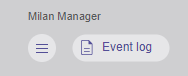
The Event Log remains open until manually closed. Switching between the main tabs of the application does not automatically hide it.
Additionally, the Event Log can be expanded into a separate window using the following button: 
The severity of unread events is reflected in the Event Log button:
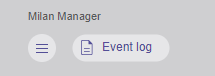 |
No new events recorded. |
 |
New events with severity level INFO recorded. |
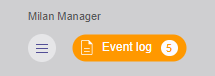 |
New events with severity level WARNING recorded. |
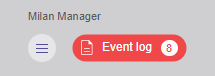 |
New events with severity level ERROR recorded. |
Levels
All changes recorded in the Event Log are categorized into three severity levels:
INFO - Basic changes or modifications that do not impact system behavior.
WARNING - Potential errors that do not significantly affect system behavior.
ERROR - Errors that impact system behavior.
Export
Selecting the  (Save all events to file) button located in the upper right corner of the Event Log exports key session details from .Milan Manager.
The exported file will include:
- Current event log entries
- Current network state
- System configuration
- Internal Milan Manager logs
When the button is clicked, a time period (All time, Last 24 hours, Last 7 days, or Last 30 days) can be specified for the data to be exported.
This exported information is valuable for troubleshooting and resolving issues related to Milan Manager.
Options
The following options are available at the top right corner of the Event Log tab:
 |
Filter events |
 |
Save all events to a file |
 |
Clear all events |
|
Open Event log as a new window |
 |
Close |