Routing
The Routing tab provides a detailed view of audio mappings within the AVB domain, offering both listener and talker perspectives.
General concepts
Stream name
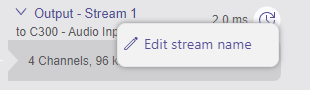
Modify stream names by right-clicking on a stream and choose 'Edit stream name'.
| Listeners | Talkers |
|---|---|
 |
 |
Channel name
Modify channel names by left-clicking on them.
Mapping
To map audio channels from or to a stream, expand streams and channel groups and click on the matrix crosspoint to connect or disconnect.
| Icon | Description |
|---|---|
 |
Click to set up a mapping. |
 |
Mapping is established. |
 |
Click to dissolve a mapping. |
Mapping for talkers
While streaming, modifications to the talker mapping will temporarily interrupt audio. To prevent accidental interruption of audio, it's required to click the 'Edit' button located in the upper right corner of the tab to start editing.

To apply the changes, confirmation must be provided using the 'Apply' button.
Diagonal mapping
When an intersection is clicked while holding the Ctrl key (Windows) or the ⌘ key (macOS), routing is either applied or removed diagonally, terminating at the lower end of the matrix.
The resulting modification is visually indicated prior to the establishment or removal of the connections.

Similarly, when the Shift key (Windows and macOS) is held while clicking an intersection, routing is applied or removed along a diagonal path that wraps around until the right end of the matrix is reached.
As with the previous method, the change is visually indicated before the connections are established or removed.

Collapse / Expand all
To collaps or expand all streams and input / output sections at a time, the  button in the upper right corner should be clicked.
Links
Use the 'jump-to' navigation feature by clicking the  icon next to stream names for faster navigation.
| Listeners | Talkers |
|---|---|
 |
 |
Upon clicking the link, the application will transition to either the Listeners or Talkers view and the corresponding device will be selected.
Listeners

The Listeners view facilitates routing between audio input streams (left) and channel groups (top). Individual routing is indicated by squares in the matrix.
Input streams and channel groups, can be expanded and collapsed by clicking on channel groups or input streams.
Connect a stream
To connect a stream, left-click the  button next to the 'Connect streams (x left)' label. This option is available only if the device has remaining listener stream capabilities.
| Description | |
|---|---|
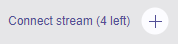 |
Ability to connect an additional stream. |
 |
No ability to connect an additional stream. |
If connecting further streams fails despite available streams, ensure that the devices are in the same Media Clock domain and use the same sampling rate.
By clicking the button, a flyout menu is opened to pick from streams available in the network.
Clicking the button next to a stream adds the stream but keeps the flyout menu open to easily add multiple streams.
By clicking the row, this stream gets connected and the flyout is closed directly.
Input stream status
Connected input streams display the talker's name and connection status:
| Icon | Description |
|---|---|
 |
Network connection working correctly. |
 |
Network connection not functioning correctly. |
Disconnect a stream
The disconnection of a stream is accomplished by left-clicking the  button located in the top row of the respective stream followed by clickiing the
  icon in the flyout menu.
Multiselection
Multiselection enables simultaneous modifications to multiple listener devices that share the same number of audio channels and streams.
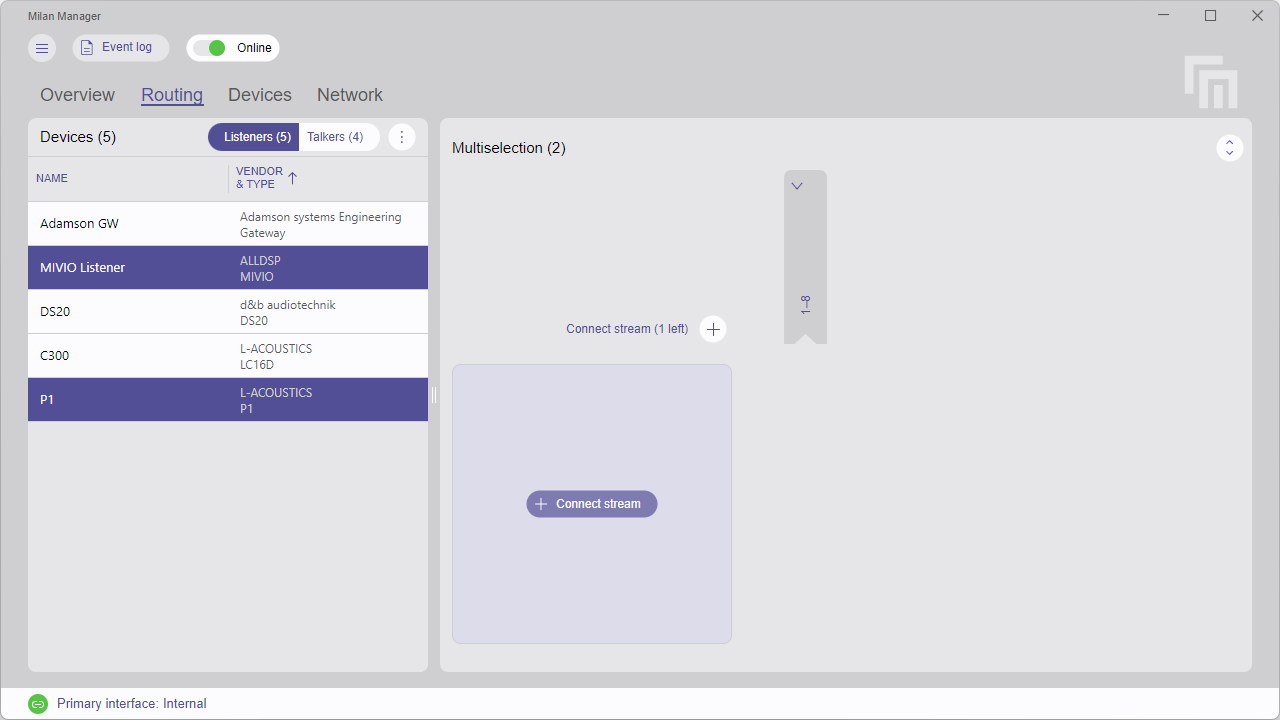
To begin editing multiple listeners, the Ctrl (Windows) or ⌘ (MacOS) key should be held while selecting devices on the left. Any changes made on the right side will be applied to all selected devices.
If multiple devices with the same capabilities but different connected streams are selected, the difference will be indicated.
Editing is not permitted in this state. However, streams may be removed to establish a common configuration for all devices.
If the connected streams match but the dynamic mapping differs, an orange outline will highlight the matrix crosspoints.

When enlarged, differences in individual crosspoints are indicated by the  icon.
Modifications to the mapping may be applied in the same manner as previously described.
icon.
Modifications to the mapping may be applied in the same manner as previously described.
Quick-select Groups
Quick-select groups provide a convenient way to recall a set of selected listener devices during a session. To create a group, either click the button at the bottom of the devices table or use the CTRL / ⌘ + G keyboard shortcut. A popup will prompt for a group name.
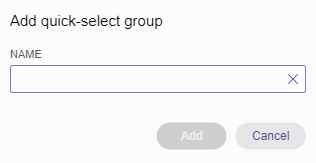
Once created, a group can be recalled by selecting it from the dropdown list. If any devices in the group are offline, a notification will appear.

To remove a group, select it from the list and click the button.
Please note: Quick-select groups are stored locally on the computer hosting Milan Manager. They will not be available on other Milan controllers within the AVB domain or even on the same computer.
Talkers
The Talkers view facilitates routing between channel groups (top) and output streams (right). It lists all available talkers in the AVB domain. Selecting a talker device on the left allows modifying output mappings if supported by the device.
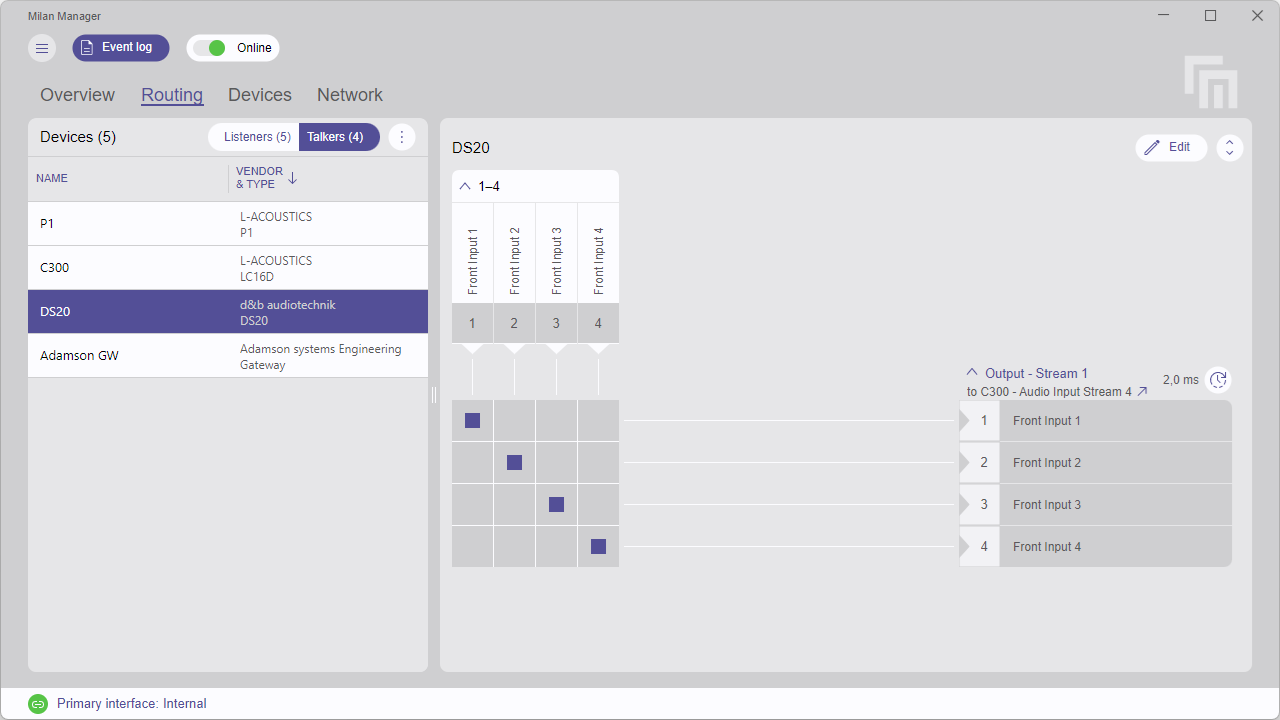
Presentation time
Next to each audio output stream name, the presentation time of the selected audio stream can be adjusted by clicking the  icon.
icon.
Presentation times that are no longer valid due to accumulated latency of connected listeners are grayed out and cannot be selected.
Devices
Device identify
Some devices implement an identification feature that helps locating the device. Invoke device identification by right-clicking a device row and selecting 'Identify Physical Device (10s)'.

Sorting devices
Sort devices by clicking on column headers (NAME, VENDOR & TYPE).
Options
The following options are available at the Routing tab:
| Option | Keyboard Shortcut | |
|---|---|---|
 |
Display filtering options |
CTRL / ⌘ + F |
|
Expand or collapse all mappings. |
E |